 COME
COMENavigate COME Pages, Tabs and Menus: Addresses and App Entry
Distinguish website links, product controls and browser history so you can return to the intended screen. You typed come. com and want to find the intended COME product rather than guess which similar domain belongs to it.
Start with the page you are on
Read the current address, page heading and visible navigation before choosing a control. An information guide, a product catalogue, a profile menu and a download page can all mention COME. They serve different tasks. Knowing the current page prevents a link to an explanation from being mistaken for an account action or a direct file transfer.
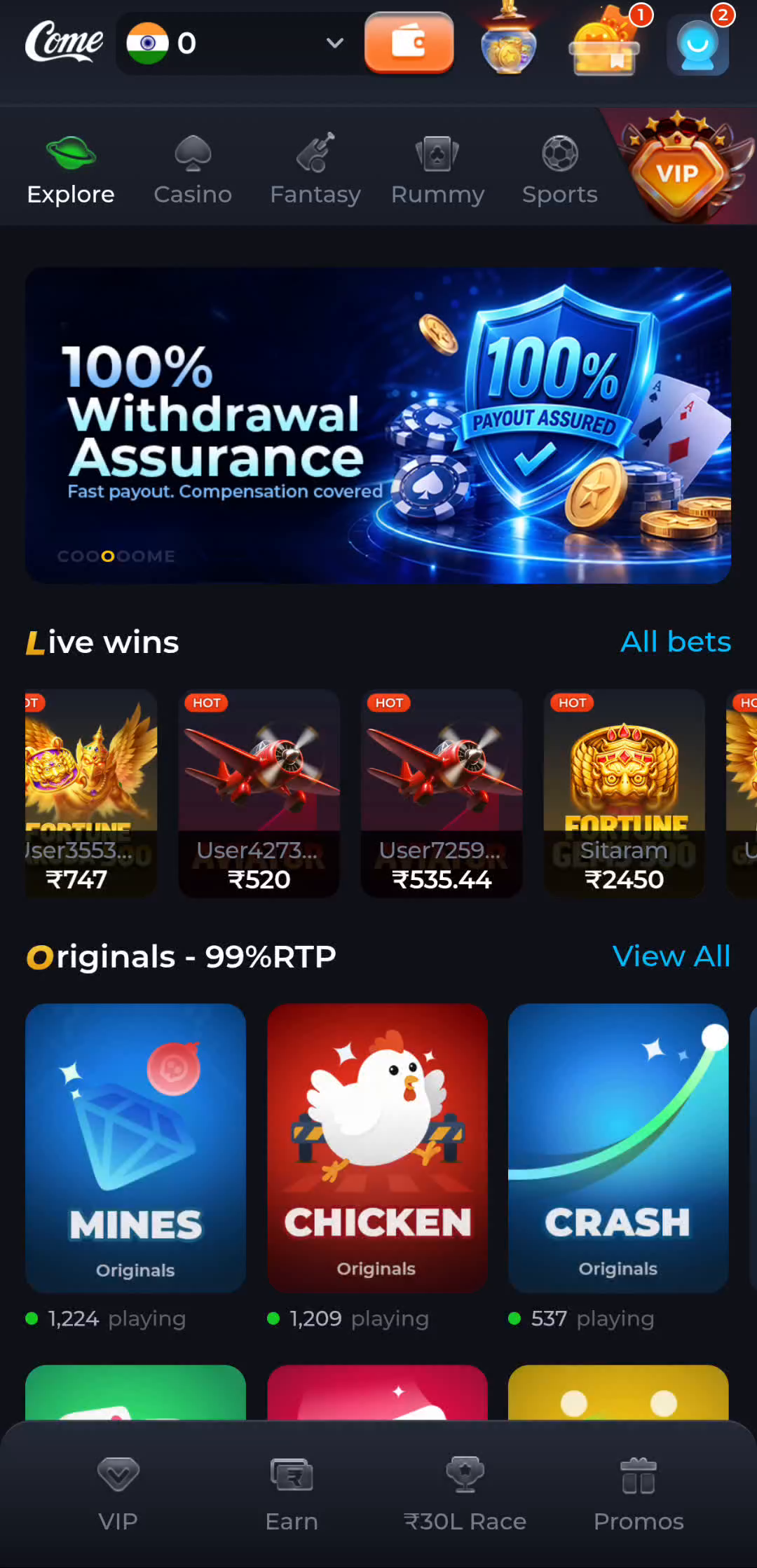
On these information pages, Home introduces the topic, Download explains Android installation, Guides indexes specific questions and IPL teaches general cricket reading. Inside the COME product interface, the visible category row and profile menu serve product tasks. Moving between those layers is a change of context, even if the same brand appears on both.
Back follows a tab's history
A browser tab keeps its own sequence of page visits. If a link opens a new tab, Back in that tab does not necessarily return to the starting page in the old tab. Inspect the open tabs and their addresses, then switch to the original one when appropriate. Do not repeatedly click the same link simply because the new tab has no earlier entry.
Browser Back and a product's own back or close control also need not have the same effect. One can change the visited URL while another closes a menu or returns within a task. Use the visible control that matches what you are trying to leave. Before navigating away from an unfinished form, consider whether its state has been saved or submitted.
Follow menu labels by their job
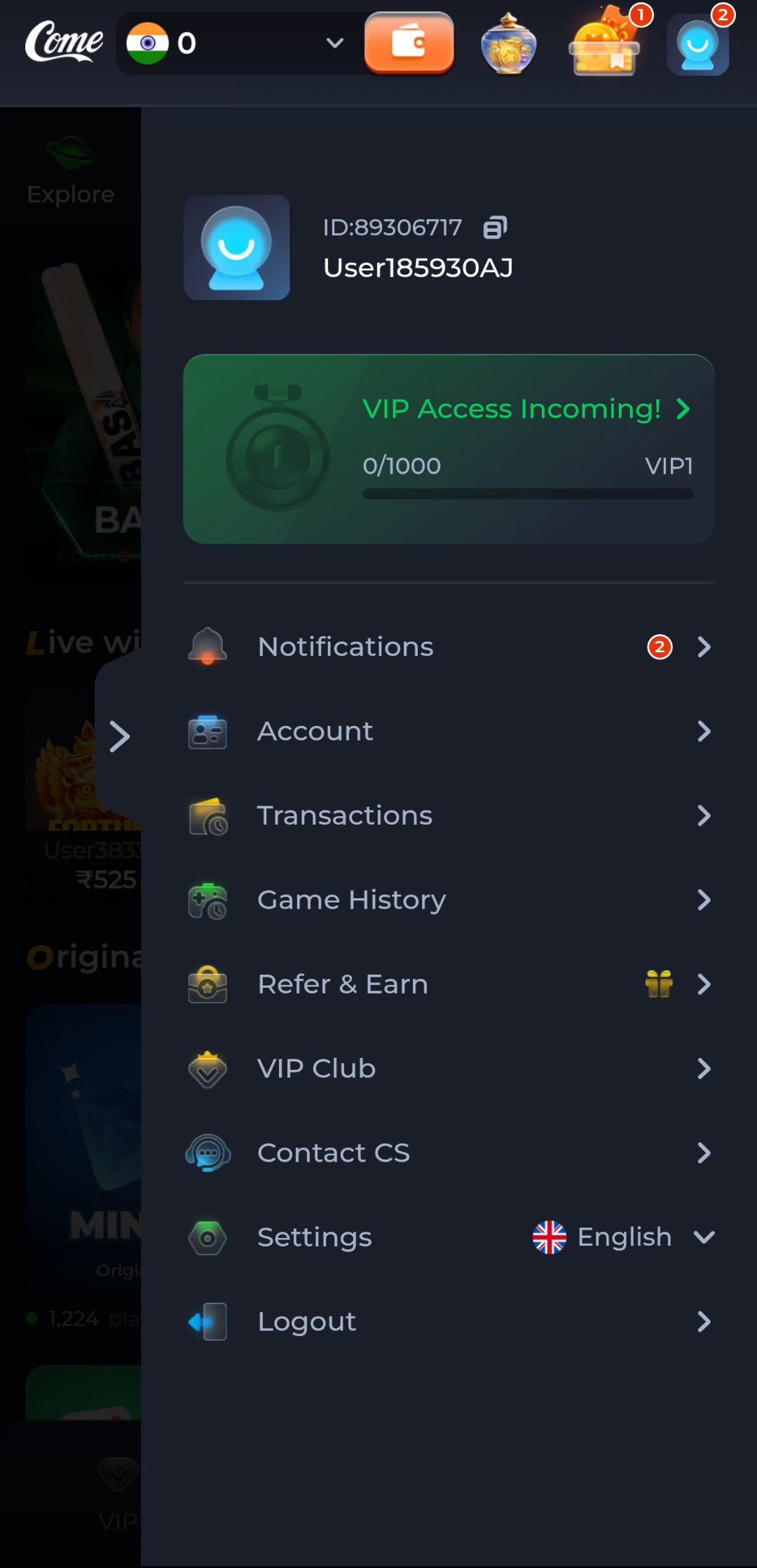
Explore, Casino, Fantasy, Rummy and Sports identify broad areas of the product interface shown here. The profile menu separates Account, Transactions, Game History, Contact CS and Settings. Choose the label related to the information you need. A category change is not another installation, and a record screen is not the same as a device setting.
If the expected screen is absent, record the current page and the last action instead of inventing a hidden route. Interface wording can change, and some views depend on account state. Use the actual current menu and the appropriate help topic. A screenshot explains the pictured arrangement; it is not a promise that every device and account shows an identical state.
Avoid repeated actions while checking navigation
A loading page and a pending submission need different handling. Do not use another payment, registration or other account-changing action as a test of whether navigation works. Inspect the current result and relevant record first. For an ordinary page visit, note whether the address changed, a tab opened or a menu appeared.
You have finished this task when you can return to the correct page and explain which control took you there. Keep links that open information, links that leave the site and controls that change an account distinct. This makes the next help request precise if a page still cannot be reached.
Apply this check to your visit
You typed come. com and want to find the intended COME product rather than guess which similar domain belongs to it.
Treat the spaced phrase as a search expression. A real hostname has a specific spelling; removing spaces or adding a suffix can lead to a different owner. Compare the address, page purpose and the action you want. This website explains the COME product entry without claiming ownership of come.com.
The checkpoint for this guide is specific: distinguish website links, product controls and browser history so you can return to the intended screen.
Questions about this task
Why does Back not return to the article?
The app link may have opened another tab. Identify the active tab and switch to the original article tab if it remains open.
Is opening a category a new download?
No. A product category is navigation inside the product; a file transfer is a separate browser event.
A related next step
Identify the host receiving a request and distinguish its address from the page path and link parameters. You typed come. com and want to find the intended COME product rather than guess which similar domain belongs to it.
Read a COME Link: Host, Path and Query: Addresses and App Entry